Back in 2023 I wrote up my Lovelace dashboards: the Waves theme, a few mushroom buttons, a media panel and a SurfacePro4 on the wall. That setup did its job for a long time, but it’s been through a house move, a lot more devices and a lot of “I’ll just add one more card” since then. It had turned into a junk drawer.
So I built a new one from scratch. It’s called Nexus, and it lives at /nexus-hq, next to my old Overview dashboard (which I deliberately didn’t touch, in case this all went wrong).
Note: I built this with Claude (running in the Claude Code add-on inside Home Assistant). I designed it, tested it and said “no, not like that” a lot. Claude wrote most of the YAML and JavaScript.
Theme
The first version was proper sci-fi: cyan glows, monospace fonts, UPPERCASE LABELS everywhere. It looked like a spaceship console for about a day. Then it got tiring to look at, and it was hard to read on my phone.
The current theme is called Graphite. It’s a warm near-black (#111213) with the Figtree font, no glows, and amber only for things that are actually on. I kept the sci-fi version as a theme called Nexus Classic, in case I ever miss it. I haven’t yet.
How it’s built
This is the biggest change from 2023. The dashboard isn’t built in the UI. A Python script (nexus_gen.py) generates the whole config, and a small push.sh saves it to Home Assistant over the websocket API.
The cards underneath are all community favourites:
- button-card: almost every tile is one of a handful of shared templates (base, tile, metric, chip, room)
- Bubble Card: one pop-up per room
- apexcharts-card: all the graphs
- navbar-card: the side rail on desktop and the bottom bar on mobile
- config-template-card and card-mod to tie it all together
Why generate it? Mostly for consistency. When every room tile comes from the same template, changing the look of one changes all of them. It also means checks can run before anything goes live. push.sh runs an audit that compares what each card shows with what tapping it opens. I added that after spotting a “Health” chip that opened my router’s sensor. Embarrassing.
I do still tweak things in the UI sometimes, so the push script checks the live dashboard first. If it’s changed since the last push, it refuses to save and lists my edits so they can be added to the generator. Losing an evening of fiddling to an overwrite is something I only want to do once.
Every screenshot in this post came from the Puppet add-on, which renders a real dashboard view to a PNG. That turned out to be really useful for testing too.
Now
This is the first view, and it’s a port of an old “Dynamic” view I loved. It only shows what’s on right now: lights (newest first), open blinds, and sections for the heating, aircon or TV that only appear when they’re running. If the page is empty, the house is off. It’s the view I check before leaving the house.

Command
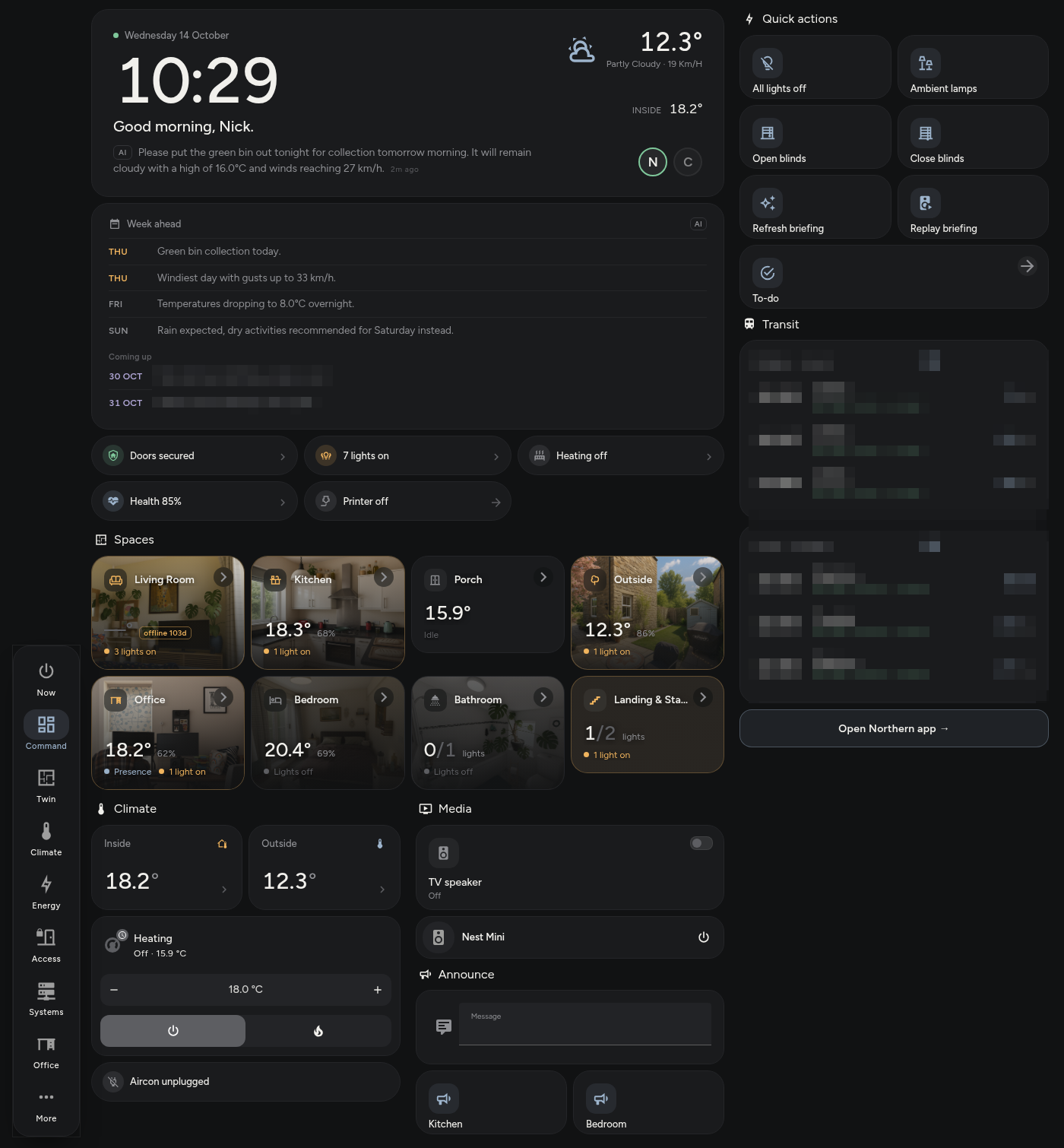
This is the main dashboard. At the top there’s a big clock, a greeting, the weather, inside temperature and presence chips for me and my partner. Below that:
- Status chips (doors, lights on, heating, system health, printer) that each open the right place
- A Spaces grid with a photo of each room, its temperature and how many lights are on. The photo dims when the room’s lights are off.
- Quick actions: all lights off, ambient lamps, blinds, plus refresh and replay for the briefing
- Live train departures and an Announce box that speaks to the Nest speakers

The AI Briefing
The line under the greeting, and the Week ahead card, come from an automation that runs every morning. It gathers the weather forecast, the bin schedule, train status and three weeks of calendars, and sends it all to Gemini through Home Assistant’s ai_task integration. The answer comes back as structured output: one sentence for today and a list of short lines for the week. Further out, the Coming up lines only list birthdays and trips abroad.
The automation fires an event with the result, and a trigger-based template sensor stores it:
template:
  - trigger:
      - trigger: event
        event_type: nexus_briefing_ready
    sensor:
      - name: Nexus briefing
        unique_id: nexus_briefing
        device_class: timestamp
        state: "{{ now().isoformat() }}"
        attributes:
          today: "{{ trigger.event.data.today }}"
          week: "{{ trigger.event.data.week }}"
Two lessons came out of this. First, Gemini cheerfully ignored “remind me if the bins go out tomorrow” in the prompt. Now the automation works out bin night itself and passes it in as an ACTION TONIGHT hint, which works every time. Second, the API sometimes returns a 503 under load, so it retries up to three times.
Spoken Briefing
The first time I press the living room lamp button each morning, the Nest Mini reads the briefing out at a slightly faster than normal pace. Live text-to-speech kept failing, because the Nest gives up after about 12 seconds while Gemini is still rendering a long message. So the audio is now pre-rendered to an mp3 whenever the briefing updates, and the button just plays the file. If that fails, it falls back to live Gemini, and then to Google Translate TTS.
Phone First
I mostly use this on my OnePlus 10 Pro, so every view was designed at 412px wide first. The generator produces separate phone and desktop layouts for each section rather than letting the grid guess.

Room Pop-ups
Tapping a room opens a Bubble Card pop-up with its lights, blinds, devices and sensors. The living room photo even changes depending on what the Fire TV is playing (Netflix, Disney+ and so on).
Each tile also has a small badge showing what a tap will do: a chevron opens something, an arrow goes to another view, and a mini switch toggles. Without them I kept tapping things expecting a pop-up and switching a light off instead.

Twin
This is the successor to the FloorPlan card from the old flat. The top half uses top-down renders I made in Floorplanner when we moved in, one per floor. Light icons sit where the real fittings are. When a room’s main light is on, the whole room lights up. When only a lamp is on, you get a soft pool of light around that lamp.
The bottom half is a schematic traced from those renders, angled walls included. Each room shows its temperature, and tapping it opens the room’s pop-up. My one hard rule was that a glow must never cross a wall. Every light’s glow is its own SVG, clipped to the shape of its room. It took a while to get right.

Home 3D
This one got out of hand. It’s a full 3D model of the house, made with three.js, that you can spin around with your finger. The walls, stairs and furniture were traced from the renders and then corrected against photos of each room, down to the retro fridge and the mirror over the living room radiator. The lights are live: tap a bulb to toggle it, tap a floor to open that room’s pop-up, and the ambient light follows sun.sun for day and night.
Was it laggy? Very, at first. Real-time lights and shadows on a phone were a bad idea. The fix had two parts. Sun shading is now baked into the model, so each room’s light is just a shader uniform. And the whole renderer moved into a Web Worker drawing to an OffscreenCanvas, so the dashboard itself never stutters. It now runs smoothly on the OnePlus.
Note: there’s no screenshot of this one. Puppet’s headless browser has no WebGL, so it just shows an error. You’ll have to take my word for it.
Climate
Thermostat, a pre-heat schedule and graphs of temperature and humidity for each room. One range selector (6h to 30d) drives every chart on the page. Heating and aircon show as red and blue bands behind the lines, so you can see when the boiler actually ran.
You’ll notice some amber offline 103d badges. A lot of my battery Zigbee sensors had quietly died, and the old dashboard was happily showing their last value for months. My outside temperature sat at 9.18° from New Year’s Eve onwards. Nexus now reads each device’s last-seen time from Zigbee2MQTT and labels dead ones honestly. Outside temperature comes from the Met.no forecast instead.

Energy
I don’t have a whole-house meter, so this view is upfront about where each number comes from. Every device is tagged:
- measured: smart plugs that report power
- estimated: PowerCalc profiles based on state (laptops are tracked by whether they’re on the Wi-Fi)
- assumed: fixed loads like the fridge freezer
Beneath that are today’s cost, the supplier’s own figures, and 14-day to 6-month history charts comparing what Home Assistant tracked with what the supplier billed. The gap between the two is the “untracked” number, which is a handy to-do list of things that still need a smart plug.

Access
Front and back door sensors, controls for each blind, and timeline charts of both. The blinds close 30 minutes before sunset and open again in the morning, and the chip at the top shows tonight’s actual time. There’s also a sun and moon arc, and a “Running now” list of everything switched on.

Systems
The homelab page. It has a health score, host CPU/RAM/disk/temperature, status chips for Zigbee, the NAS and the tunnel, and a usage meter for my Claude plan. It also covers mobile data left per day on the 5G router, missing entities from Watchman, and a list of offline Zigbee devices with how long each has been gone.
Safeguards
Some tiles are dangerous to tap by accident. The Wi-Fi reboot never toggles the router directly. It runs the same reboot automation as the old dashboard. The printer’s power switch asks for confirmation, and long-press is disabled on these tiles so the more-info dialog can’t be used to sneak around the confirmation.

Office
My desk page. It has office temperature, humidity, light level and presence, plus the controls for the office light, speaker, USB power and my 3D printer. When the printer is on, the live camera and print progress appear. When it’s off, there’s just a note and a power history chart.
The printer has an auto-off automation. Writing it took some digging through a month of history, because the printer’s status flickers to “idle” for minutes at a time mid-print. A naive “turn off when idle” would have killed a few prints.
Panel
Finally, the wall tablet view. It’s the SurfacePro4’s successor in spirit. The briefing, the schematic and the room tiles are all on one screen, running in kiosk mode with no header or sidebar.

What’s Next
First, replacing those dead Zigbee sensors, which Nexus now reminds me about every time I open it. After that, probably putting real room dimensions into the 3D model instead of the ones estimated from the size of my sofa.
The biggest change from 2023 isn’t any one card. It’s that the whole dashboard is now code, with checks that run before anything goes live. It’s much harder to break, and I spend more time using it than fixing it.